Northstar example tour
Choose New project on the Projects page or beside the active project selector. Enter your project name, then choose Start from an example → Create. This creates an independent copy of Northstar under your chosen name, even when other projects already exist. It creates its own local inputs and a connection named Northstar; no credentials or external database are needed. The Open example project shortcut is also available when the project list is empty.
New to Duckpad? Follow the quickstart to install it and run your first pipeline. The website version of this guide includes a captioned recording of the steps below, regenerated from the application with Playwright.
Explore the pipeline
- Run the pipeline in
dev. Orders reads 120 CSV rows and Customers reads 12 Parquet rows. Enrich orders performs a customer join. - Select Paid orders. Its
ordersoutput contains paid rows, whileoverviewreads that newly calculated output in a second SQL block. Switch outputs in the preview. - Open Regional revenue. It is an instance of the shared Regional report component. The High-value orders node uses the same definition with a different exposed filter condition.
- Double-click Regional summary inside the report. This second component contains a filter and metrics for
SUM,AVG,MIN,MAX,COUNTandCOUNT(DISTINCT customer_id). - Return to the report. Rank regions uses a window function over the grouped result. Inspect its current and executed SQL separately.
- Select Customer reach. Its four ordered outputs use
DISTINCT,UNION,INTERSECTandEXCEPTto compare customer channels. - The two export nodes write revenue CSV reports. Their explicit paths appear in compiled SQL and run history. Running again replaces the same local files according to native
COPYbehavior.
Explain a value
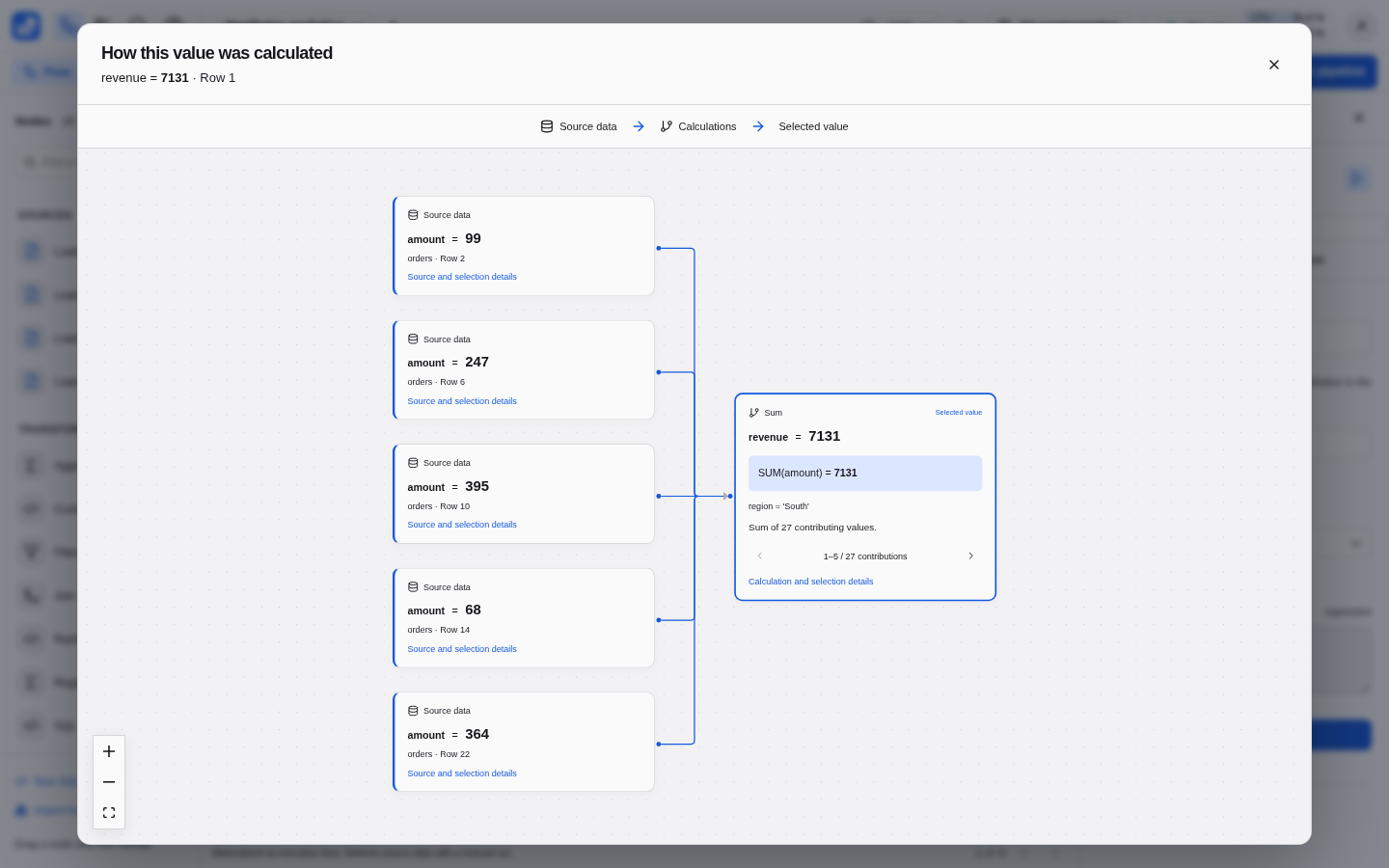
Select Regional revenue and its report output. Click a revenue cell. The calculation modal connects source amounts directly to the aggregate, collapsing the rank projection and other steps that merely carry the value forward. Use Next to display another five inputs; the exact total covers all contributions, regardless of the preview row limit.
For a distinct customer count, value-group cards show the count of original rows. Open a group to see its source cells. Repeated purchases remain separate cells. For a maximum, all tied extrema are shown; calculation details expose the full examined group as row-selection context.
Documentation is available on the project tab and the selected node’s Documentation tab, including dataset and column descriptions.
Inspect the SQL
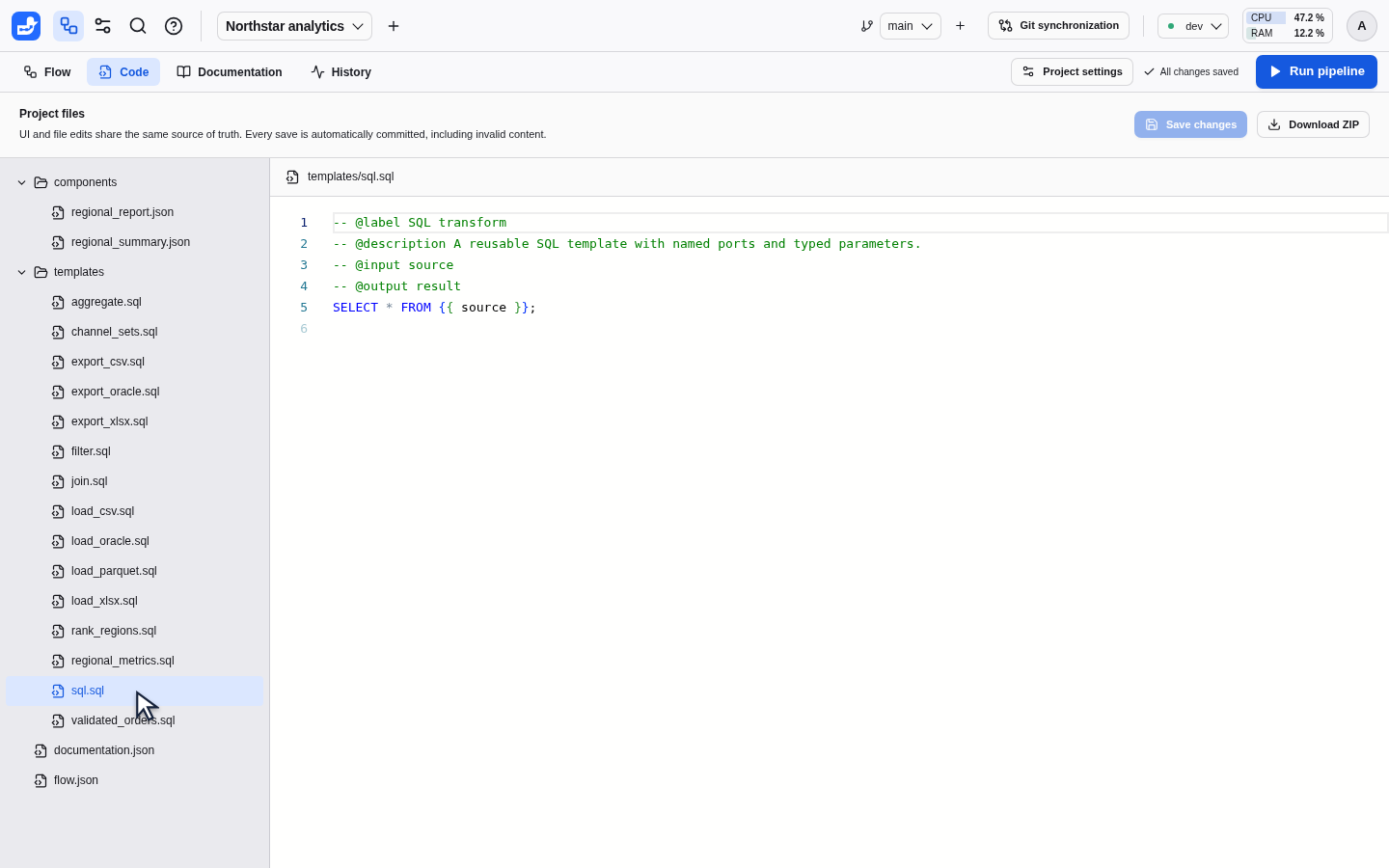
Open the Code tab and select templates/sql.sql in the project file tree.
The editor gives you access to the SQL and structured files behind the canvas.
Edits to a shared definition affect its instances in the current branch; use an
isolated working branch when experimenting.
Compare configurations
- Change the exposed condition on High-value orders. Its results become stale; the separate Regional revenue instance retains its own parameters. Run manually to publish replacements.
- Switch to
prod. No computation or commit occurs. Run manually to use the separate source directory; production fixture amounts are three times their development values. - Move a node or edit its business documentation. The change is committed without invalidating results.
- Create a branch, edit a shared template/component, run and compare, then merge explicitly. The main branch changes only after the merge.
- Create a second project and import Regional report from the shared library. The nested definitions are local independent copies. Connect a compatible orders input and run it.
- Introduce invalid SQL in a branch. It is still committed; the old preview remains stale and lineage is disabled. Correct the SQL and run again.
- Stop a running query or restart the backend. History remains inspectable; a restart clears materialized previews and does not replay exports.
Oracle and S3 require environment-specific setup, so their end-to-end demonstrations are separate reproducible integration scripts described in Connector setup.