Your first pipeline
Go from a fresh install to a result you can explain. The included Northstar project provides synthetic CSV and Parquet data, reusable transformations and exports. You do not need an external database account.
1. Start Duckpad
You need Python 3.11+ and Git. The package includes the interface; you do not need Node.js or a source checkout. SQL execution requires Linux with Landlock ABI 2 or later (Linux 5.19+ with Landlock enabled). A Linux container or VM must also expose this capability.
pip install duckpad
duckpad start
Open the local address printed in the terminal, normally http://127.0.0.1:8765.
Sign in as admin using the password printed once on first launch. Save it
somewhere private; the same password remains valid after a restart.
See installation and accounts for instance options, virtual environments and development from source.
2. Open the example
Choose New project on the Projects page, enter a name, then choose Start from an example → Create. Keep the dev environment selected and click Run pipeline. Wait for the run to finish. This reads 120 orders and 12 customers, joins them and writes two local CSV reports.
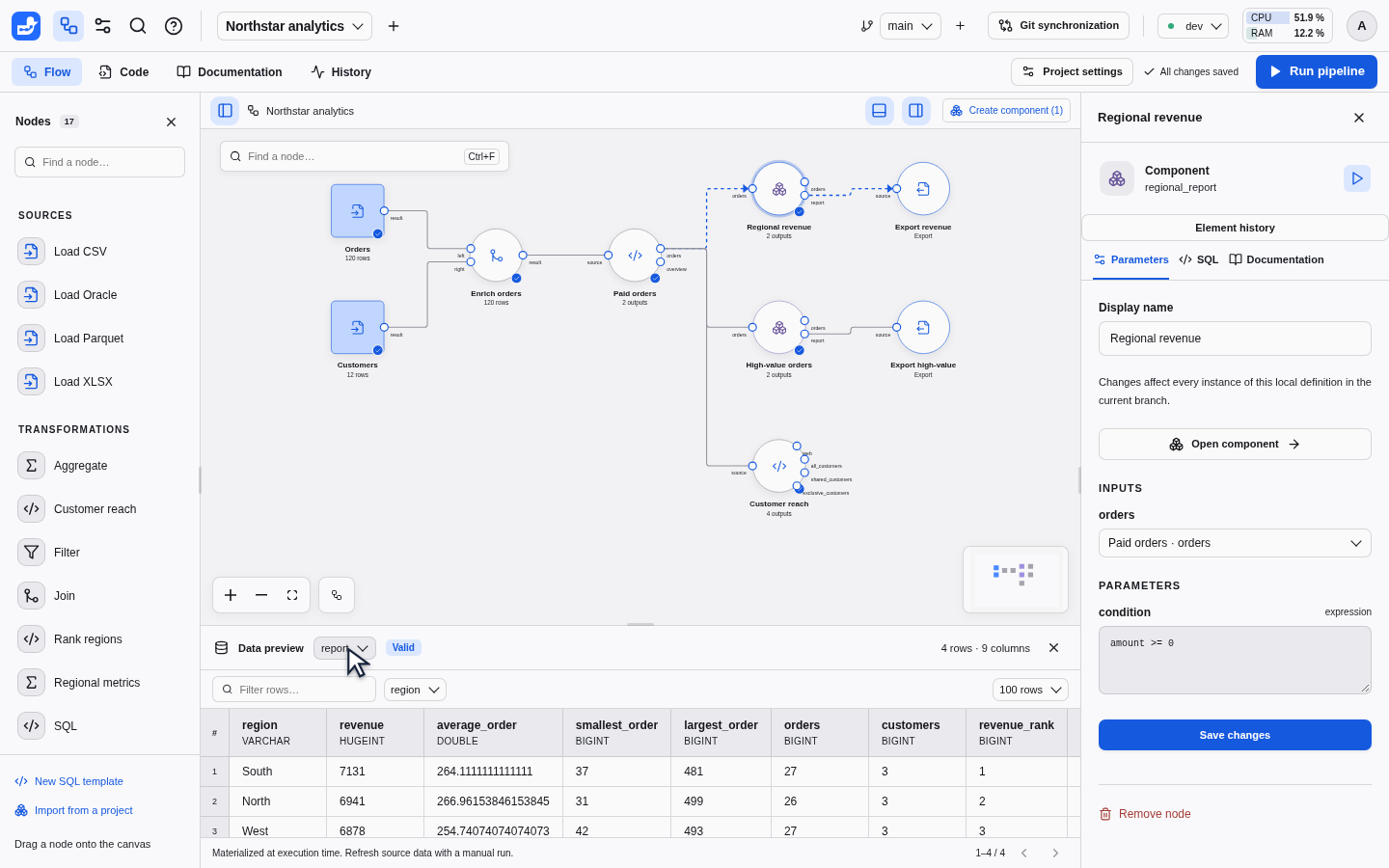
Select Regional revenue on the canvas and choose report in the output selector. The table shows the calculated revenue for each region.
Use Find a node… to search the current graph by label, ID or template. Choose a result with the mouse or the arrow keys and Enter to select and center it. Inside a component, this searches that component’s nodes.
Search instance in the top bar finds projects, open branches and placed nodes across projects you can read, including nodes inside nested components. Results show their project, branch and component path; selecting one opens that location. Search uses saved project metadata, never SQL, parameter values, connection secrets or result rows. It does not change the project or run a pipeline.
Press Ctrl+F (⌘F on macOS) to focus canvas search, or Ctrl+K (⌘K) to open instance search. These shortcuts leave text editors, other form fields and open dialogs in control of their keys.
3. Explain a number
Click a revenue cell in the result table. A large modal connects the original amount cells to the sum that produced the selected revenue. Unchanged values pass straight through, leaving only source cells and meaningful calculations.
The calculation shows SUM(amount), its result and the full number of
contributing values. Use Next to display the next five inputs. Open a card’s
details to inspect the SQL or the context that selected its rows. Pan and zoom
the graph as needed; press Escape to return to the result table.
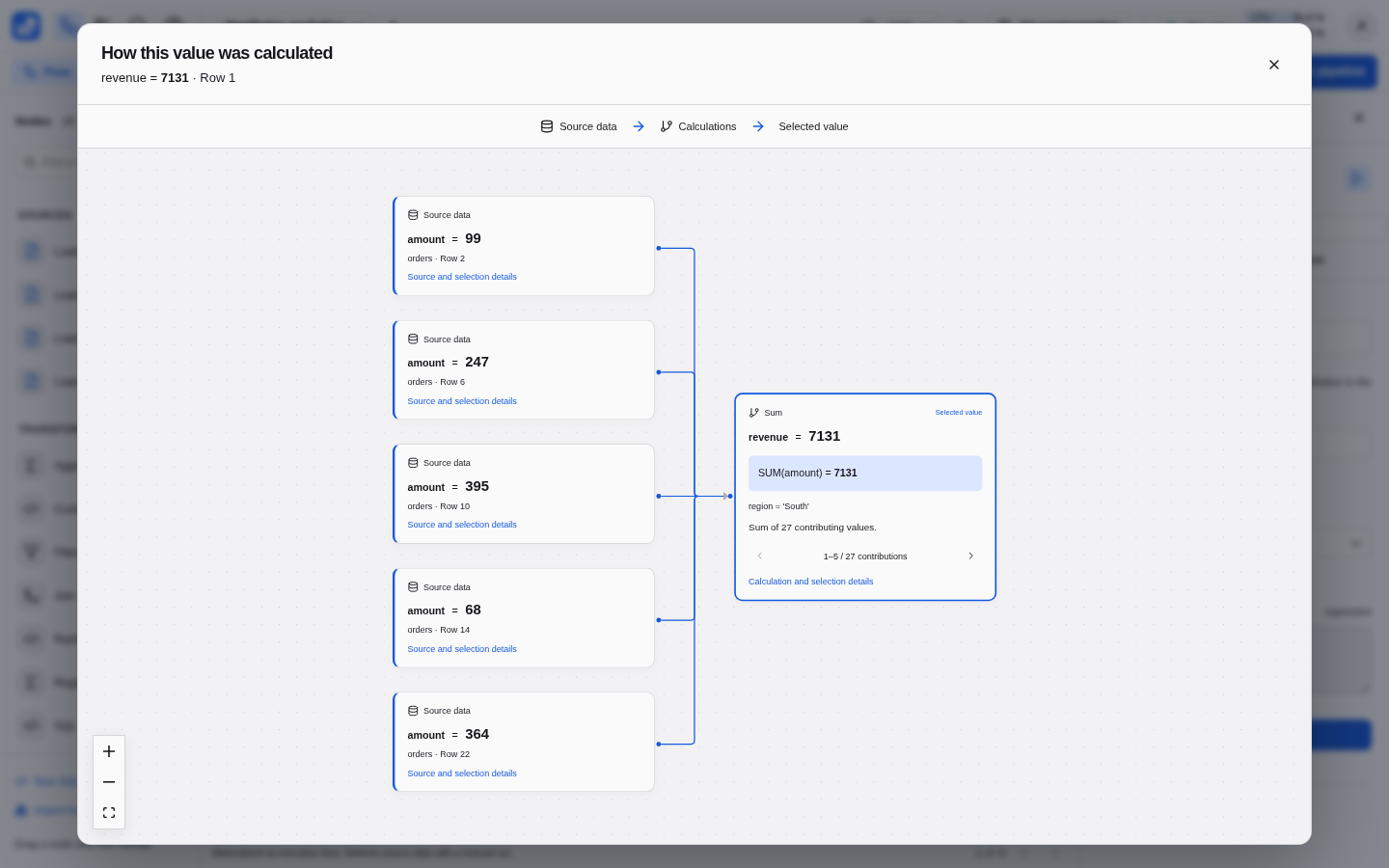
An explanation describes the data captured by that run. It does not silently read a changed source file. See lineage coverage for supported SQL and explicit limitations.
4. Make it yours
Select Paid orders and change its status parameter. The old preview becomes Stale. Click Run pipeline again to compute the new result. You choose when a run happens; editing never starts one automatically.
Try the Code tab to inspect the project files and SQL. Use New working branch before experimenting with a shared definition, then compare your changes before merging them. The version control guide explains the full review workflow.
Where next?
- Follow the Northstar tour for nested components and environment comparisons.
- Learn the pipeline and SQL template contract.
- Configure your own connections.
- Invite your team with accounts and project roles.
If something gets in the way
- An unsupported sandbox error: check that the Linux kernel exposes Landlock ABI 2+. Duckpad refuses SQL execution without its isolation boundary.
- An instance is already running: stop the original process or use a different
--homedirectory and--portfor a second instance. - A blank or stale preview after restart: run the pipeline again. Execution history persists; materialized results and lineage live in memory.
- A build error on an older CPU: the deployment guide describes the optional portable DuckDB runtime. Keep DuckDB 2.0; do not downgrade to bypass setup.