AI assistant
The assistant answers questions about the saved project: the flow, SQL, documentation, variables, execution history and, when enabled, existing output values and their lineage. Project editors and administrators can also ask it to change the open branch, with an Undo button for each saved change, and propose a run for your explicit approval. It cannot execute arbitrary SQL or change instance settings. Responses can be mistaken; inspect the cited nodes and tool results before relying on an explanation.
The assistant stays on topic: Duckpad, your projects and their data, and data or software development questions such as SQL, DuckDB, data modeling, Python or Git. It briefly declines unrelated requests, such as a cooking recipe, and suggests a related question instead. Questions about your project’s data are in scope whatever that data describes. The rule is part of the model’s instructions, not a filter: a model can still misjudge a borderline request.
Configure a provider
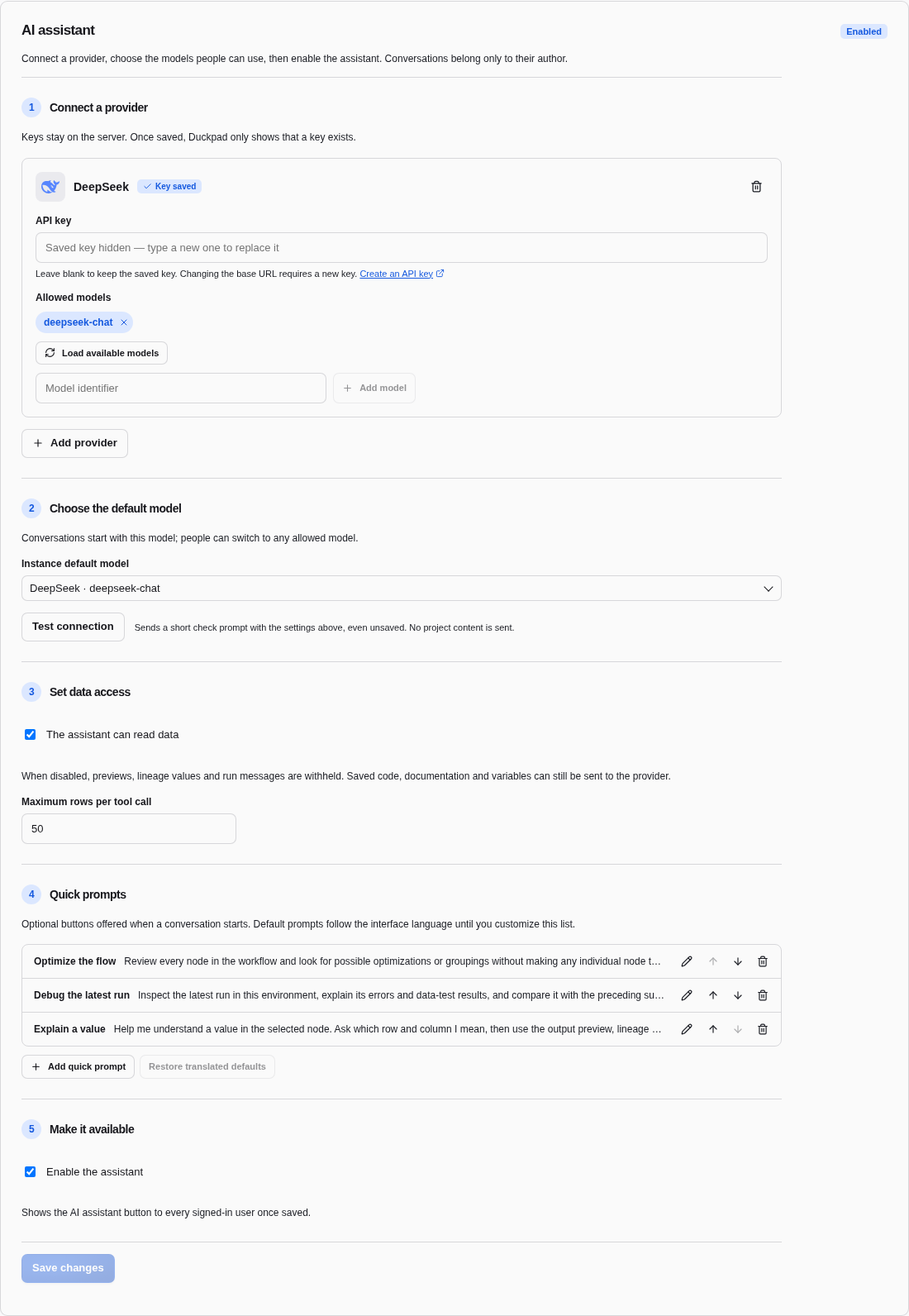
An instance administrator opens Instance settings → AI assistant. The assistant starts disabled; the badge next to the title shows the saved state.
- Connect a provider: choose OpenAI, Anthropic, Google, Mistral, DeepSeek,
Ollama or an OpenAI-compatible server, then enter its API key. Hosted
providers link to the page where you create one. Ollama and custom servers
can work without a key; set their API base URL, including
/v1when the server requires it. Ollama defaults tohttp://localhost:11434/v1; that address is relative to the Duckpad server, not the browser. Use Add provider to connect another one. - Under Allowed models, Load available models lists the provider’s chat models without saving anything first; check those people can use and filter long lists. Add identifiers the provider does not list by typing them in Model identifier.
- Choose the default model: the first allowed model is preselected. Test connection sends a short connection-check prompt with the settings on screen, saved or not. It does not read any project content.
- Set data access and, optionally, adjust the Quick prompts.
- Make it available: check Enable the assistant, which requires a default model, then choose Save changes in the bar at the bottom of the page.
All users share the instance’s configured providers; they choose an allowed model and never enter personal keys.
A saved key is write-only: the browser receives only its presence, shown as Key saved on the provider, and the empty field keeps it. Typing a new key replaces it when you save. Changing the API base URL clears the old key; enter it again if the new endpoint needs authentication. Model discovery and the test reuse a saved key under the same rule. Removing a provider removes its saved key. Keys and conversations stay in instance storage, outside project Git and ZIPs.
OpenAI-compatible gateways
For a gateway that requires OAuth2, choose OAuth2 client credentials under
Authentication. Enter its Token URL, Client ID, Client secret and,
if required, Scope. Duckpad obtains a bearer token using HTTP Basic client
authentication (RFC 6749 section 2.3.1).
Token requests have a ten-second timeout and never follow redirects. Tokens stay
in memory, are shared across requests and turns, and renew 30 seconds before
expiry. A rejected token is renewed once before the request fails. If the token
endpoint omits expires_in, Duckpad obtains a fresh token for each request.
The client secret is encrypted in instance storage and is write-only, like API keys. The browser receives only Secret saved. A blank field keeps the saved secret only while the provider, base URL, token URL and client ID stay the same. Changing any of these requires re-entering it. Switching authentication methods clears the inactive credential. Discovery and connection tests use these same rules. If the gateway has no compatible model catalog, enter model IDs manually.
Streaming is enabled by default. Streaming requests to custom providers send
Accept: text/event-stream. Disable the option if a gateway returns complete
JSON responses: text appears when generation finishes, while tools and run
confirmations still work. Test connection exercises the same response mode
as chat and suggests disabling Streaming if the gateway does not support it.
Custom gateway reads can wait up to 120 seconds, including buffered SSE; the
whole turn and connection test are still limited to 120 seconds. A server error
is reported separately from an unreachable provider, without exposing its body.
Some gateways split one answer across several choices: text in one choice and
tool calls in the others. With Streaming disabled, Duckpad combines these choices
in index order, joins text paragraphs and keeps every tool call, including run
requests that need approval. This compatibility behavior applies only to custom
providers and complete JSON responses; split choices in streamed responses are
not supported.
Troubleshoot provider failures
An unreadable provider response displays The provider returned a response the assistant could not read. Check the server logs.
The duckpad.assistant logger writes a WARNING for failed turns, connection tests
and model discovery. It includes the provider identifier, model (when applicable)
and exception class chain, without exception messages or response bodies.
Start Duckpad with duckpad start --log-level debug to also log the complete
exception traceback and messages. Configured API keys, OAuth2 client secrets,
credentials from unsaved connection settings and cached OAuth2 tokens are masked.
Debug logs can still contain excerpts of prompts, responses and project data.
Keep them private, review them before sharing and return to the default log level
after troubleshooting.
Ask about the current page
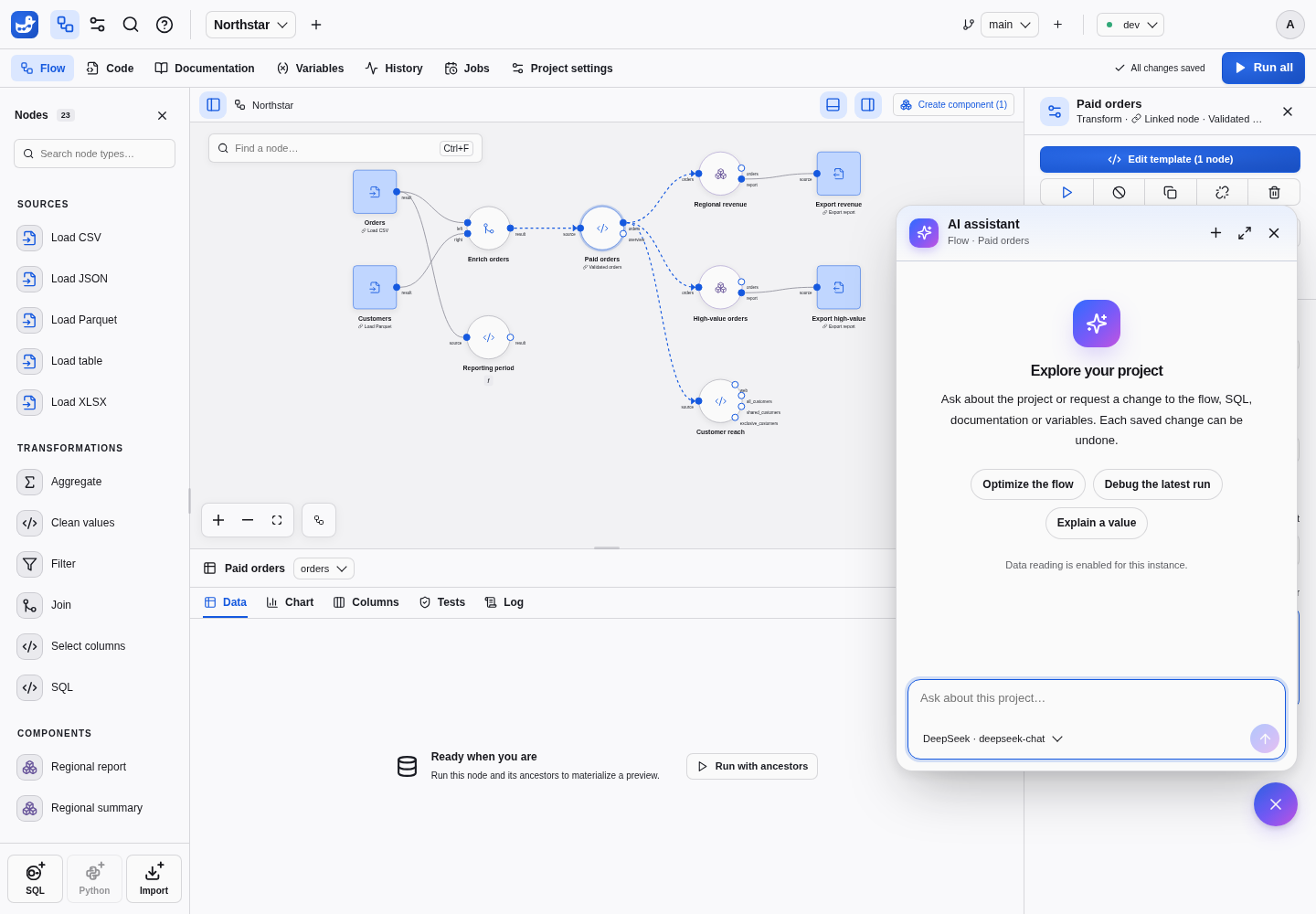
Open a project branch and choose the AI assistant bubble at the bottom right. The bubble also appears on other signed-in pages when the assistant is enabled. Drag it to another height or to the left edge if it covers something you need; with the keyboard, focus it and press Alt with an arrow key. This browser remembers its place, and the chat opens next to it.
Under the chat title, Duckpad shows the context sent with each message: the current page and the selected node or Code file. The branch and environment are those of the top bar; the title names the environment only when it differs, for example after Ask the assistant on a prod run. Before sending a message, Duckpad saves pending editor changes. A failed save stops the message so you can resolve it first. The server validates the context and reads saved content. On pages without an open working branch, the assistant can answer general Duckpad, data and development questions but has no project-reading tools.
The assistant receives Duckpad’s SQL and parameter rules, including the difference
between -- @param declarations and project variables. It can consult every
Duckpad guide of this documentation, even without an open project. These guides
match the installed version and are separate from your project’s README and
descriptions. Try “How does @param work?” or “How do I bind a project variable to
a node?”.
For Northstar, try “How do paid orders reach the regional report?” or, after running the flow yourself, “Why does this region have this revenue?” Data tools inspect retained results; missing or stale data may require a run.
Choose a model, type a message and press Enter to send; Shift+Enter adds a line break. Stop cancels the provider request. Closing and reopening the chat preserves the conversation. Expand tool cards to inspect results.
Each turn is limited to 12 provider requests, 30 tool calls and two minutes.
Request a change
For example, ask “Add a normal SQL node that returns the number 1”, “Rename this node to Paid orders”, or “Document the regional revenue output”. It can edit the flow, node/template SQL, documentation, variables and charts. Shared template edits report how many linked instances they affect.
For variables, it can inspect declarations, values by environment and usages; create, update, rename and delete; remove a default or environment override; and switch between ordinary and computed values. Updating an environment preserves the other overrides. Deletion refuses variables still used by node bindings, expressions, paths or saved result views. Ask it to inspect those usages first. Computed-value inspection does not execute the source node or read its retained data.
For charts, ask for example “Chart revenue by region” or “Make this
a line chart”. It can create, update, rename and delete a named chart on any
node output, including outputs of component instances. An update replaces the
whole spec, and a rename keeps the chart on its output. The assistant is told
to shape rows in SQL, since a chart draws at most 5,000 rows. An invalid spec is
refused with the same diagnostic as charts.json validation, leaving the files
unchanged. When a saved chart encodes a field that the output’s retained result
in the current environment lacks, the tool result names it so the assistant can
fix the chart or the SQL in the same turn; the warning never blocks the save,
and an output without a result is not checked. Chart editing reads no row
values and requires the same editing rights as the other writing tools. Each
change has an Undo button; see the result in the output’s Chart tab.
Each successful writing tool call is one commit on the open branch, authored by
your Git identity, with a Duckpad-Assistant: <conversation> trailer that
pushes keep. History shows it as via the assistant. Its chat card lists the
changes, includes a SQL diff when relevant, and opens Compare versions for
the commit. The canvas and open editors update without a page reload; unsaved
edits retain their original revision for normal merging. Readers have no writing
tools and see a read-only notice.
Choose Undo on an action, or Undo these N changes to reverse the remaining actions of a turn from newest to oldest. Undo makes new commits and preserves independent changes made afterwards. If a later edit touches the same content, the action shows Resolve conflict: both versions remain available in the normal conflict dialog, and no conflicting content is overwritten. A batch undo stops at the first conflict; resolve it, then undo the remaining actions. Choosing to keep the current version leaves that action available to undo again.
Undo remains available when you resume a conversation, as long as its original branch exists and you still have editing rights. Stopping a response or a provider failure does not roll back actions already saved; their cards still offer Undo. Deleting the conversation removes its cards, but does not delete its commits or undo its changes.
Run with confirmation
Ask, for example, “Run the regional report node in dev” or “Run this whole flow in prod”. The assistant proposes a run; it does not start it yet. Its confirmation card names the environment and scope, includes the required upstream nodes, shows the variables used, and highlights exports and external writes. Those external effects cannot be undone. Protected environments show their additional confirmation notice in the same card.
Choose Confirm and run or Decline run. A refusal goes back to the model. If the request can no longer resume, for example because an administrator removed its model, declining closes it without a response and the conversation continues with your next message. Pending confirmations survive a page reload: maximize the assistant and reopen the conversation to answer. Each request can be answered only once. If the flow or connection configuration changes after the proposal, ask for a fresh run and review its new confirmation. Runs require the same project editing rights as running from the workspace; Readers cannot launch or cancel them.
The card follows execution status and offers Cancel run while it is active.
Stop stops the assistant response, while Cancel run stops execution.
Neither action reverses completed external writes. History records the entry
point as assistant, together with the requesting user.
Debug an execution
Choose Ask the assistant from an error in a node’s Log or a failed run
in History. The chat opens with the run, node and environment as context. Send
the prepared question to inspect run/node errors, the SQL actually executed,
-- @message messages and -- @test data-test results. You can also ask for a
comparison with the preceding successful run in the same environment and scope.
Historical SQL is taken from the run, so later edits do not change that evidence.
For “why this value?”, identify the output row and column. The assistant uses the existing output preview, follows lineage contributions and reads upstream SQL to explain the calculation. With data reading disabled, error/message text, test values and executed SQL are withheld; the assistant can still discuss code and execution status metadata.
Quick prompts
New conversations offer buttons such as Optimize the flow, Debug the latest run and Explain a value. Clicking one sends its full prompt. The default buttons and prompts follow the interface language.
Instance administrators manage Quick prompts in Instance settings → AI assistant; the list applies to everyone on the instance. A customized list keeps its authored language; Restore translated defaults restores language-aware defaults. Saving an empty list hides the buttons. These settings are not stored in project Git files.
Conversations
Maximize assistant opens a larger view with your conversations on the left, ordered by recent activity. Select one to reopen its original branch and resume. The first message names a conversation unless you renamed it first.
Conversations are private to their author, including against other instance administrators. Sending a message after navigating to another project or branch starts a new conversation. A conversation continues while the project files have errors, so you can ask for help fixing them. Losing project access prevents further project-reading turns. Deleting the author or the project removes its conversations from SQLite.
Control what leaves the instance
The assistant can read data is enabled by default. With it enabled, the model can inspect previews and lineage values up to Maximum rows per tool call (default 50), and execution messages and errors. Turn it off to remove preview and value-lineage tools entirely; run message text and error text are also withheld because they can contain values. A conversation created with data reading enabled cannot resume while the option is disabled: start a new one so its previous values are not resent.
Even with data reading disabled, your questions, saved code and its literal values, documentation, variable declarations and values, flow parameters, output schemas, status metadata and branch commit metadata can reach the selected provider. This is a data-result policy, not a secret scanner for user-authored project text. Keep credentials in instance connections. Provider keys, OAuth2 client secrets and resolved connection secrets are never offered to the model. See the provider data contract for the full list.